Exploded views in SOLIDWORKS, Fusion, Inventor and Onshape
Each CAD program makes exploded views its own way. Here are the steps in the four most searched for, from each maker's own help, how to get the view onto a drawing, and how to export a STEP file when someone else needs to draw it.
3 min read14 sources
All four work the same way underneath: you record one or more explode steps (which parts move, which way and how far), save them with the assembly, and then pick that exploded state when you place a view on a drawing sheet. Menu names change between versions; these are from each maker's current help, read on 1 November 2026.
SOLIDWORKS
“You create exploded views by selecting and dragging parts in the graphics area, creating one or more explode steps.”
- 01
Start the exploded view
Click Exploded View, or Insert > Exploded View, or right-click a configuration in the ConfigurationManager and choose New Exploded View.
- 02
Pick the parts for the first step
Select one or more components, then drag a translation or rotation handle. You can type an explode distance or angle instead.
- 03
Add more steps
Click Done for each step, add the next, and click the green tick when the explosion is complete. It is saved under the configuration, and a configuration can hold several.
- 04
Put it on a drawing
Insert a Model View of the assembly, then right-click the view and choose Show in Exploded State (or tick Show in exploded or model break state in its properties).
To send the assembly to someone else: File > Save As, choose STEP under Save as type, and set the version under Options.
Autodesk Fusion
“Use the Animation workspace to create exploded views and to animate parts and assemblies.”
- 01
Switch to Animation
Change to the Animation workspace and start a new storyboard (Storyboard > New Storyboard, type Clean).
- 02
Explode
Select the top of the assembly and use Transform > Auto Explode: All Levels, setting the distance with the slider; or use Transform > Manual Explode and drag the parts yourself.
- 03
Put it on a drawing
From the workspace menu choose Drawing > From Animation, pick the storyboard as the reference, choose the template and standard, and place the base view.
- 04
Parts list and balloons
Add Tables > Parts List: Fusion adds balloons to the view it labels.
To export a STEP file: File > Export, choose "STEP files (*.stp, *.step)" as the type, and click Export. Fusion's help lists STEP export for Personal Use licences too.
Autodesk Inventor
- 01
Make a presentation file
Create a presentation (File > New, the .ipn template), or right-click the assembly in the browser and choose Create Presentation, and insert the model.
- 02
Tweak the parts
Start a storyboard, then use Tweak Components on the Presentation tab: select parts, choose move or rotate, and drag the triad or type a distance.
- 03
Take a snapshot
Capture the exploded state with New Snapshot View and save the .ipn.
- 04
Put it on a drawing
Right-click the snapshot and choose Create Drawing View, or run Base View in an existing drawing and pick the .ipn and the snapshot.
“Use snapshot views stored in a presentation file to create drawing views. The drawing views keep links to the source snapshot views, and are updated when you edit the snapshot views in the presentation file.”
To export a STEP file: File > Export > CAD Format, and choose STEP.
Onshape
- 01
Open the Exploded views panel
In an Assembly tab, click the exploded view icon and Add exploded view.
- 02
Add steps
Select parts (a box selection works), drag the manipulator or type a distance, choose translation or rotation, and tick each step. Explode lines are on by default.
- 03
Finish
Click Done. Exploded views are made in the browser; Onshape's phone and tablet apps show them but don't make them.
- 04
Put it on a drawing
Use Insert view and pick the named exploded view from the Explode/Position list.
“Exploded views can be selected (individually) as a view in a drawing. If you want all your exploded steps to be visible in one drawing view, create one Explode with many Explode steps.”
To export a STEP file: right-click the Assembly tab, choose Export, and set the format to STEP.
When you only have the STEP file
Suppliers and customers usually send a STEP file rather than the native model, and not everyone who needs the drawing has the CAD program. See how to make an exploded view from a STEP file.
Make it from your STEP file
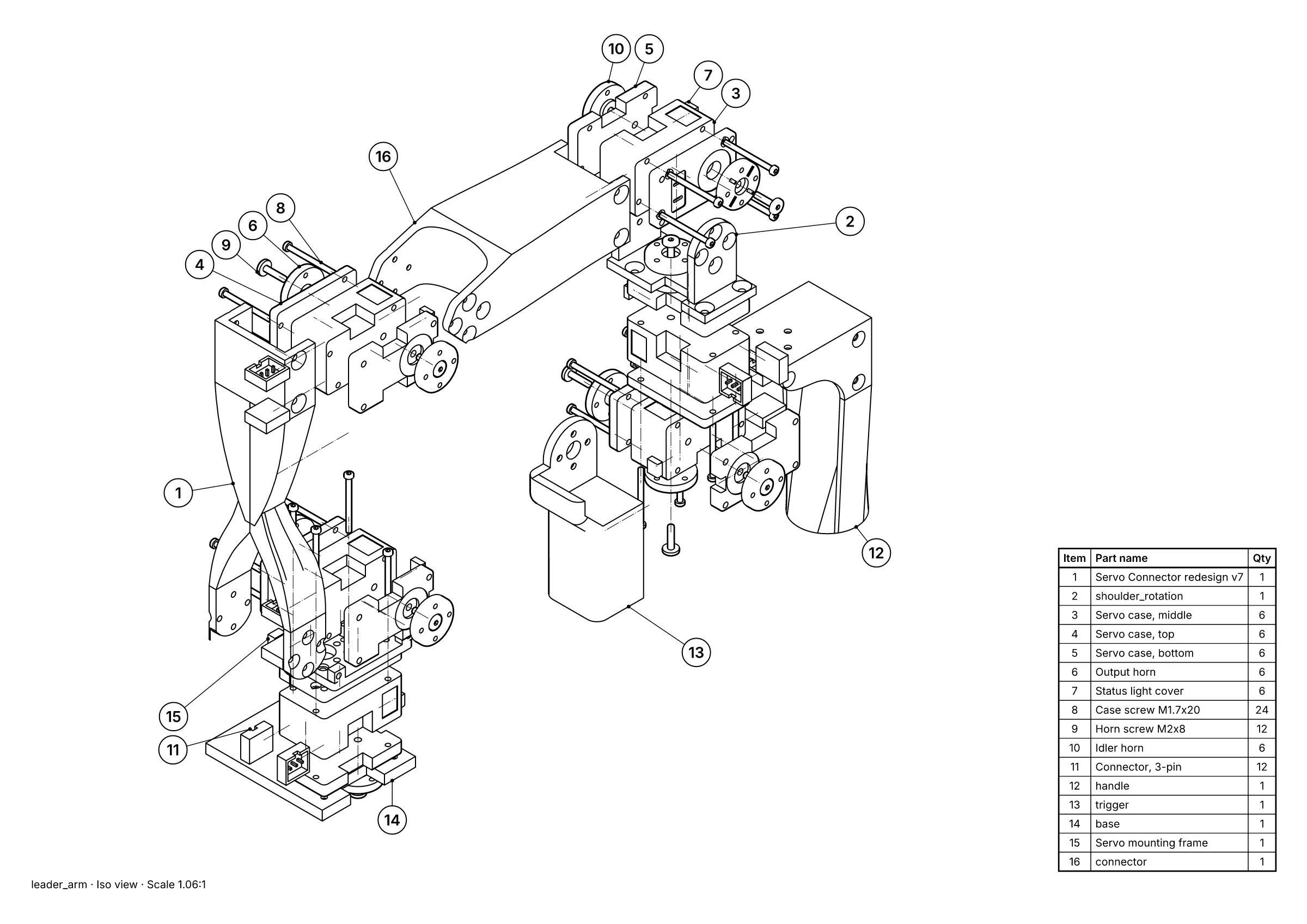 A parts page: exploded view, 16 balloons and the parts list, placed for you.
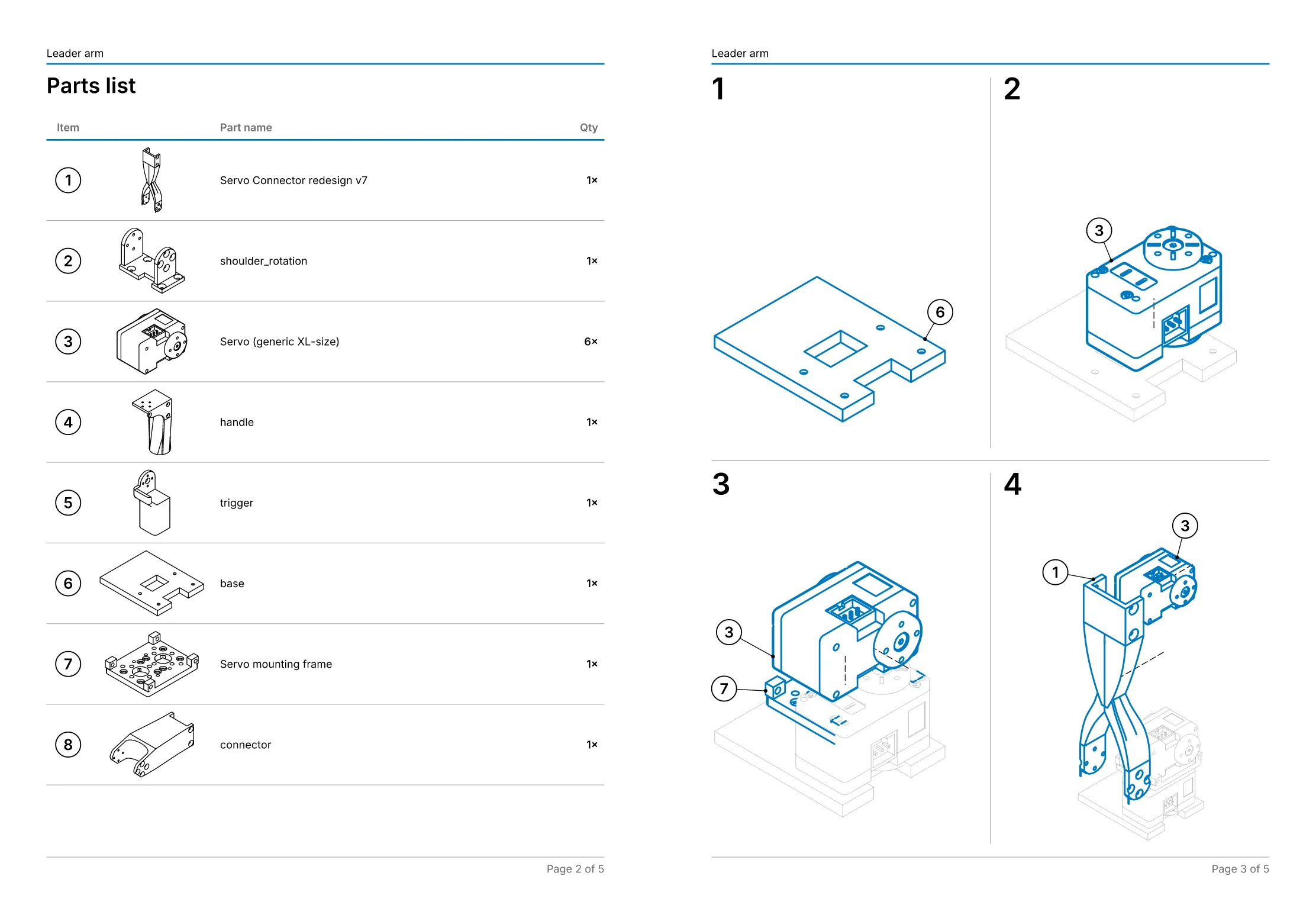 An assembly manual: 11 steps on 5 pages, worked out from the explosion.
- Free, in the studio. Exact hidden-line drawings and exploded views of up to 250 parts, as SVG, DXF, PDF or PNG, with no account.
- Pro, £49 a month per editor. Balloons and parts lists, step-by-step assembly manuals as PDF, your own title block and logo, and drawings that follow the CAD when it changes. Just one job? Project pass: Pro for 30 days, £79 once, with nothing to cancel.
- Or we draw it for you, from £150. Send the STEP file and we draw one view free first, so you can judge it before you pay anything. Drawings done for you.
Sources
- 01Creating Exploded Views (Assemblies), 2025, SOLIDWORKS Help (Dassault Systèmes). Read 1 November 2026.
- 02Exploded Views in Drawings, 2025, SOLIDWORKS Help (Dassault Systèmes). Read 1 November 2026.
- 03STEP Export Options, 2025, SOLIDWORKS Help (Dassault Systèmes). Read 1 November 2026.
- 04Animation overview, Autodesk Fusion Help. Read 1 November 2026.
- 05Activity 2: Explode the assembly, Autodesk Fusion Help. Read 1 November 2026.
- 06Create a new drawing from an animation, Autodesk Fusion Help. Read 1 November 2026.
- 07Create a parts list, Autodesk Fusion Help. Read 1 November 2026.
- 08Export designs, Autodesk Fusion Help. Read 1 November 2026.
- 09To Create Presentation for a Model, Autodesk Inventor 2025 Help. Read 1 November 2026.
- 10To Create Drawing Views Based on Presentation Snapshot Views, Autodesk Inventor 2025 Help. Read 1 November 2026.
- 11Saving and Exporting Files Reference, Autodesk Inventor 2025 Help. Read 1 November 2026.
- 12Exploded Views, Onshape Help (PTC). Read 1 November 2026.
- 13Drawing views, Onshape Help (PTC). Read 1 November 2026.
- 14Exporting Files, Onshape Help (PTC). Read 1 November 2026.