How to make a parts list and balloons from a STEP assembly
A ballooned drawing with a parts list is the page a fitter, a buyer and a spares desk all use. A STEP file holds everything needed to make one, if you deal with its quirks first.
5 min read5 sources
A parts list, or bill of materials, is the list of what goes into a product and how many of each:
“A bill of materials or product structure (sometimes bill of material, BOM or associated list) is a list of the raw materials, sub-assemblies, intermediate assemblies, sub-components, parts, and the quantities of each needed to manufacture an end product.”
On a drawing, each line of that list gets an item number, and a balloon (a numbered circle with a leader line) points from the number to the part. The reader finds a part in the picture and reads its name and quantity in the table, or the other way round. This guide is about the version that goes in a manual or on a spares page: a picture and a table that agree.
1. Check what the STEP file gives you
Open the file and look at the model tree. A STEP assembly exported from SOLIDWORKS, Inventor, Fusion or Onshape keeps the product structure: sub-assemblies, parts and each placement of a part. That is enough for a parts list. If the tree shows one solid, the parts were merged on export and you need a fresh export.
- Names carry the exporter's instance numbers:
Bracket:1andBracket:2from Fusion or Onshape,Bracket<1>from SOLIDWORKS. They are one item with a quantity of two, not two items. - Watch for suffixes that are real.
PHS_1_7X20is a part number, and the_1in it is not an instance count. - Bought-in units (a motor, a servo, a bearing block) often arrive as sub-assemblies full of their own parts. The reader buys them whole, so list them as one line.
- Part names are whatever the designer typed, if anything. Expect to rename.
2. Group, count and name the items
An item is one line of the list: every part that is the same shape with the same name, counted. Do the counting from the model, not by eye, because fasteners are where lists go wrong: twelve screws of two lengths look like twelve screws until someone runs out.
- Rename each item with the name the reader uses: "M3 × 8 socket head screw", not
ISO 4762 M3x8 --- 8N. - Add the columns your readers need: your part number, the supplier's code, material, a spares flag. Keep the CAD name in an export even if it isn't printed, so the list can be traced back to the model.
- Decide the depth. FreeCAD and Fusion both let you list the first level only or every level. For a manual, bought units as one line and your own sub-assemblies broken into parts is usually right.
3. Number the items once
Item numbers are the contract between the picture and the table, and between this drawing and every other one. Number in assembly order, or with the large parts first; either works, as long as the number belongs to the item and not to the drawing. If you renumber, every drawing must change with it, so the safest numbers are the ones you never have to type twice.
4. Place the balloons
- One balloon per item per view is the norm. Repeat a balloon only where a reader would otherwise look for the part twice.
- End the leader on a visible line of the part, with a dot or an arrow, never in empty space or on a neighbour.
- Put the balloons in a ring around the drawing, or in tidy columns, ordered so the numbers run round in sequence.
- Leaders should not cross each other or run along an edge of the drawing, where they are easily misread as part of the line art.
- Use an exploded view when parts hide each other. Balloons on an assembled view only reach what is visible.
5. Doing it in CAD
In FreeCAD 1.0, Assembly → Bill of Materials (shortcut O) makes the list from an assembly, and a column named with a full stop and a property name is filled from that property of each part. Balloons are separate: TechDraw → Annotations → Balloon Annotation adds one balloon with a leader at a time, and you type its number. In Fusion's Drawing workspace, Tables → Parts List places the list and balloons the view for you, and the numbers stay tied to the list:
“The numbers in the balloons match the Item numbers for each component in the parts list.”
Both assume you have a native assembly to work in. From a STEP file you first import it and rebuild an assembly, which is quick for ten parts and slow for two hundred.
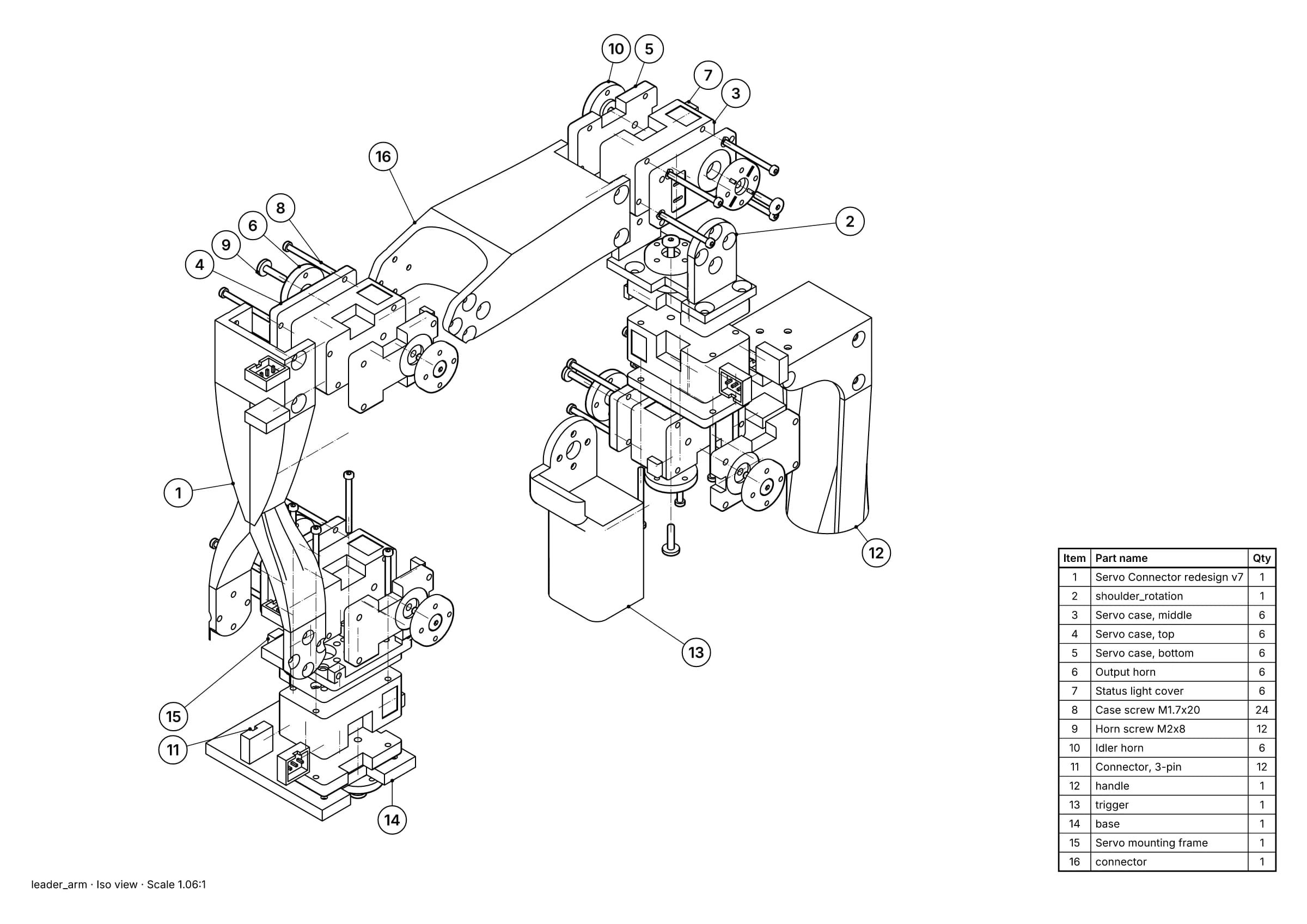
Fig. 1 · leader_arm.step · 16 balloons · 16 items · A3
A parts page made from a STEP file: an exploded view, numbered balloons and the parts list, all line art. Leader arm of Alexander Koch's low-cost robot arm. Model © 2024 Alexander Koch, MIT licence; servo and frame models by Galaxy Technology.
6. Keep it right when the design changes
The parts list goes out of date the first time the CAD changes. When a new revision arrives, check three things before you reissue: new parts have a number and a balloon, removed parts have gone from the list and every drawing, and changed parts kept their numbers. A spares desk that has learnt item 14 is the motor does not want it to become item 15.
Sources
- 01Bill of materials, Wikipedia. Read 5 October 2026.
- 02Assembly CreateBom, FreeCAD Documentation. Read 5 October 2026.
- 03TechDraw Balloon, FreeCAD Documentation. Read 5 October 2026.
- 04Create a parts list, Autodesk Fusion Help. Read 5 October 2026.
- 05Create balloons, Autodesk Fusion Help. Read 5 October 2026.