How to turn a STEP file into an SVG line drawing
A line drawing is a projection with hidden-line removal, not a file conversion. Here is how to make one that a manual or a vector editor can use, with free tools.
4 min read3 sources
Search for "STEP to SVG" and most of what comes back are format-converter pages. They tend to turn the model into a mesh of triangles and trace that, which gives you thousands of short straight segments where there should be a circle, and edges where the triangles meet rather than where the part has edges. That is not what anyone wants in a manual.
What you want is a projection: the exact geometry in the STEP file viewed from one direction, with the edges you can't see either removed or drawn dashed. CAD people call this hidden-line removal (HLR). Every route below does that from the real surfaces, so arcs stay arcs.
What good output looks like
- Circles and arcs are true arcs in the SVG (
Acommands or curves), not polylines. - Hidden edges are either gone or on their own layer or class, so you can dash or delete them in one go.
- The outline of curved faces (the silhouette of a shaft or a fillet) is drawn, even though it isn't an edge in the model.
- The drawing is in real units on a sheet, so a line weight in millimetres means something when printed.
- Each part is its own group, so you can recolour or remove one part without picking through loose paths.
Check any tool against that list on a part with holes and fillets before you commit to it for a whole manual.
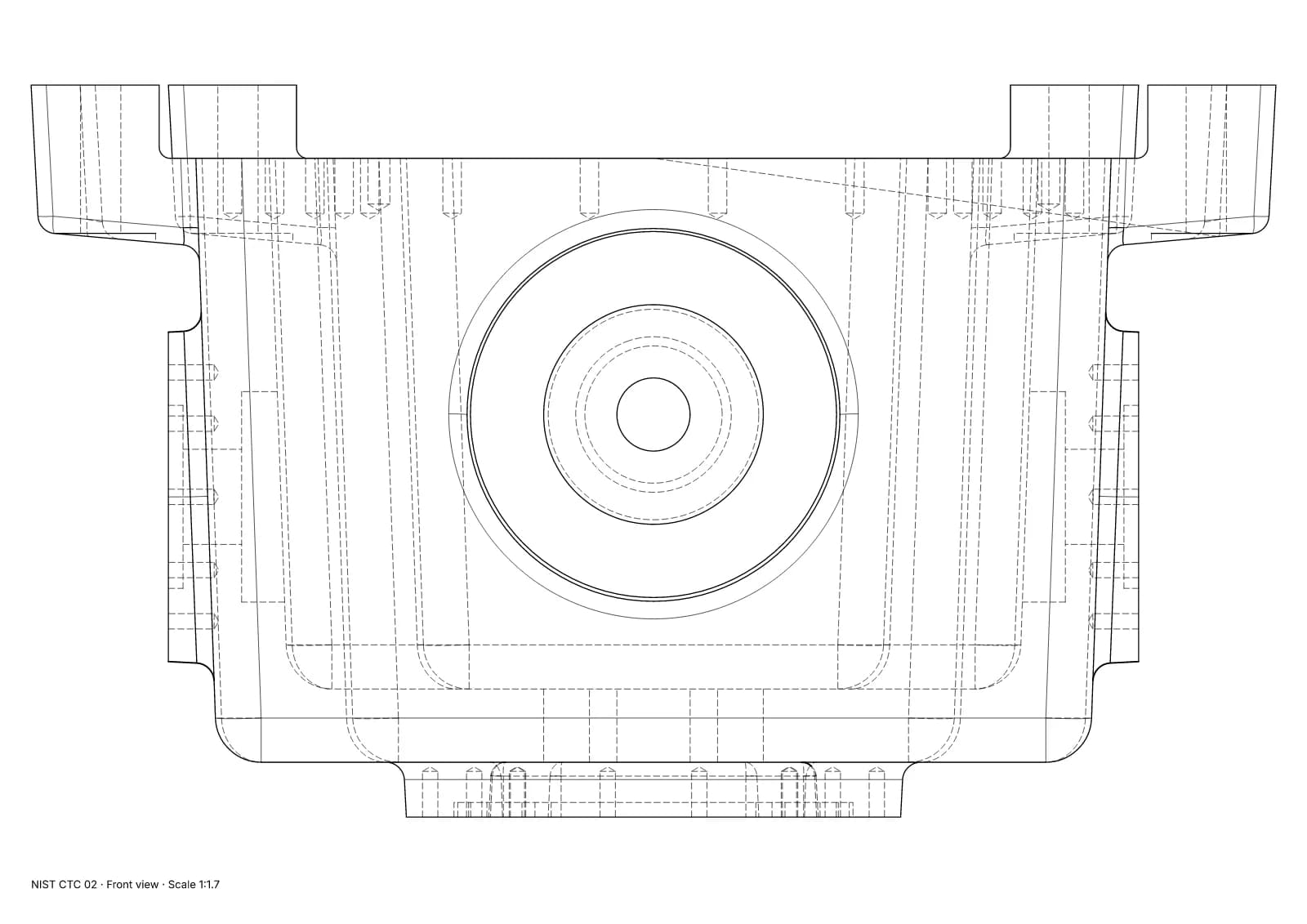
Fig. 1 · NIST CTC 02 · front view · Technical · 1:1.7 · 116 true arcs · 0 fragments · 0 duplicates
A part with holes and fillets, drawn from its STEP file: every circle is an arc, hidden edges are on their own dashed layer, and the sheet is in millimetres. NIST MBE PMI test part, a US government work used without restriction.
Option 1: FreeCAD TechDraw (free, desktop)
FreeCAD is open source and reads STEP. Its TechDraw workbench makes projected views from the exact geometry and can export a page as SVG.
- 01
Import the STEP file
Use File → Import… and pick the
.stepor.stpfile. Large assemblies take a while; let it finish before rotating the model. - 02
Add a page
Switch to the TechDraw workbench and insert a page from a template (A4 or A3 landscape suits most illustrations).
- 03
Insert a view
Select the parts in the tree (or the top-level part that contains them) and use Insert View. Set the direction:
(0,-1,0)is a front view and(1,-1,1)is an isometric view, per FreeCAD's own documentation. - 04
Choose the lines
In the view's properties,
Hard Hiddenturns hidden lines on or off andSmooth Visiblecontrols tangent edges such as the edges of fillets. LeaveCoarse Viewoff: it approximates every curve with short segments. - 05
Export
TechDraw → Page → Export Page as SVG. Open the result in a vector editor and check the arcs are arcs.
“CoarseView can be much faster for complex models. The quality of the drawing is reduced, since every curve is approximated as a series of short line segments.”
The catch is speed and setup. A big assembly can take minutes per view, and the exported page includes the template frame, which you may need to delete.
Option 2: a short build123d script (free, needs Python)
If you are comfortable with Python, build123d (built on the same OpenCASCADE kernel as FreeCAD) projects a shape and writes visible and hidden edges to separate SVG layers. This is adapted from the example in its documentation, with a STEP import and a viewpoint added; we ran it with build123d 0.13.0 on a NIST test part. Set view_port_origin to where the camera should be, at a sensible distance for your model's size.
from build123d import *

part = import_step("assembly.step")
view_port_origin = (-100, -50, 30)
visible, hidden = part.project_to_viewport(view_port_origin)
max_dimension = max(*Compound(children=visible + hidden).bounding_box().size)
exporter = ExportSVG(scale=100 / max_dimension)
exporter.add_layer("Visible")
exporter.add_layer("Hidden", line_color=0x636363, line_type=LineType.ISO_DOT)
exporter.add_shape(visible, layer="Visible")
exporter.add_shape(hidden, layer="Hidden")
exporter.write("part_projection.svg")
It is repeatable, which matters when the model changes and you need the same view again. Line weights and grouping per part are up to you.
Option 3: your CAD system's drawing module
If you own the CAD that made the model, its drawing environment already does hidden-line views. Most can save a drawing as PDF or DXF, which a vector editor can open and save as SVG. Expect to clean up: drawing exports often split curves, add the title block, and lose any grouping by part.
Tidying the SVG
- Set line weights by role, not one weight for everything: a heavier outline, lighter interior edges. See line weights for technical illustration.
- Decide on hidden lines per drawing rather than by habit; hidden lines: when to show them covers when they help.
- Delete fasteners and internal parts nobody needs to see before you style, not after.
- Keep the source view settings (direction, parts hidden) with the file, so the next revision of the CAD gets the same drawing.
Sources
- 01TechDraw View, FreeCAD Documentation. Read 4 October 2026. View direction, hidden-line and coarse-view properties.
- 02TechDraw ExportPageSVG, FreeCAD Documentation. Read 4 October 2026.
- 03Import/Export (project_to_viewport and ExportSVG), build123d documentation. Read 4 October 2026.