Hidden lines in technical illustration: when to show them
Engineering drawings show hidden edges by convention. Illustrations for manuals usually shouldn't, with a few exceptions worth knowing.
3 min read3 sources
A hidden line is an edge that exists in the model but is behind something from where you're looking. Hidden-line removal works out which edges those are. What you then do with them is a drawing decision, and the right answer depends on who the drawing is for.
Two kinds of drawing, two habits
In a manufacturing drawing, hidden lines carry information: the depth of a blind hole, a bore through a block. The line types used in technical drawings are standardised in ISO 128-2:
“This document establishes the types of lines used in technical drawings (e.g. diagrams, plans or maps), their designations and their configurations, as well as general rules for the draughting of lines.”
An illustration in a manual has a different job. It helps someone recognise a part, find it, and see what to do with it. Most readers aren't trained to read dashed lines as "behind", and on an assembly the hidden edges of dozens of parts turn the picture grey. So the default for illustration is: leave them out.
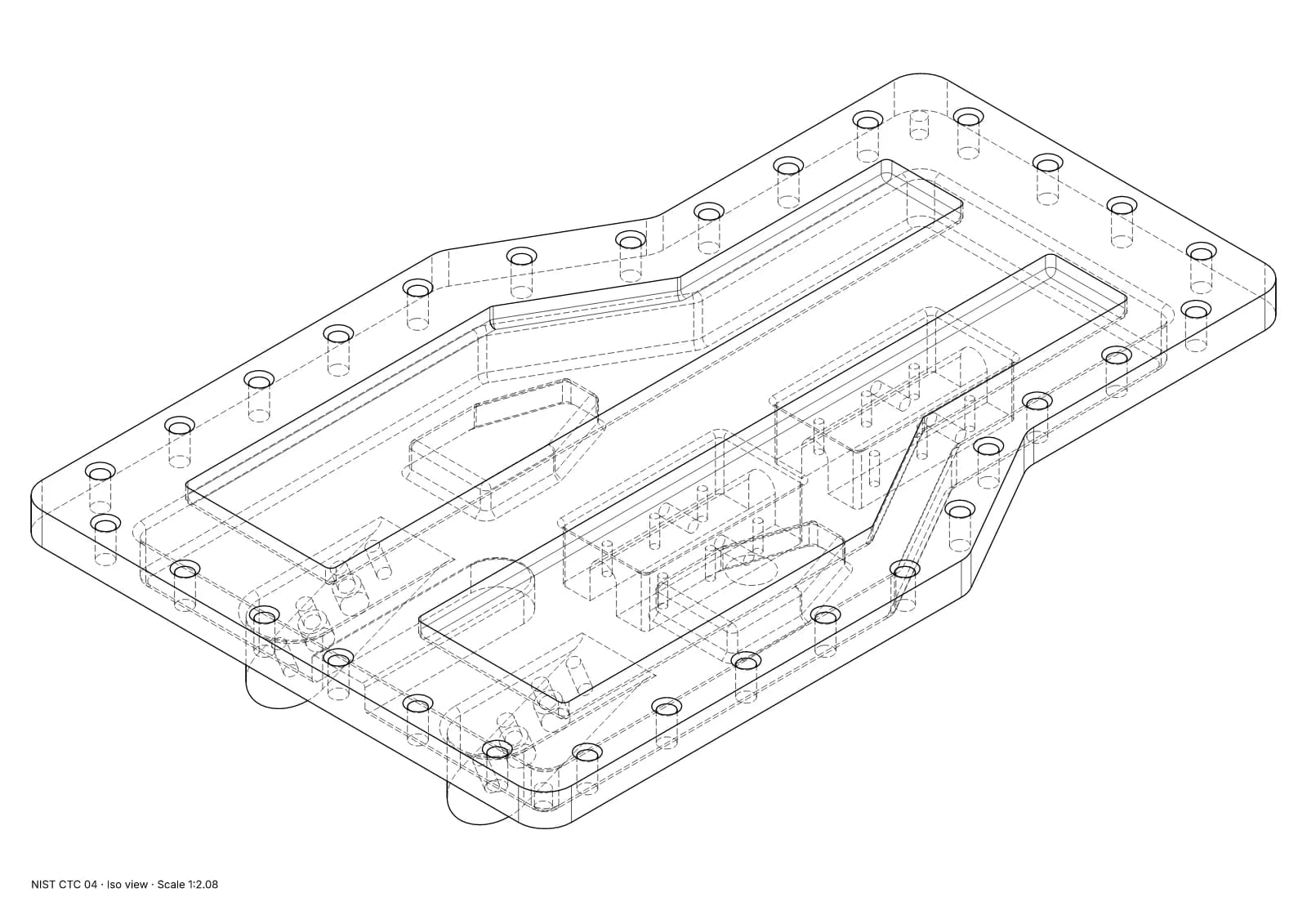
Fig. 1 · NIST CTC 04 · iso view · Technical · 1:2.08 · 854 true arcs · 0 fragments · 0 duplicates
One part with its hidden lines dashed. On a single part they read as depth; across an assembly of dozens of parts the same lines would turn the picture grey. NIST MBE PMI test part, a US government work used without restriction.
When hidden lines earn their place
- A hidden feature the reader acts on. A screw inside a housing that has to be reached through an access hole, or a latch behind a panel. Show that one part's hidden edges, not every part's.
- Alignment the reader can't see. A shaft that must pass through a hidden bearing; a few dashed lines show the path.
- Single parts with internal features, for a reader who is used to engineering drawings, such as a spares catalogue for fitters.
- Drawings that double as engineering references, where the convention is expected.
When they get in the way
- Assemblies of more than a handful of parts: the dashes from back parts cross the front parts and nothing reads.
- Exploded views: the separation already shows what's behind what.
- Small reproductions: dashes close up when a drawing is printed small, and a dashed edge becomes a grey smudge.
- Anything for a non-specialist reader.
Better alternatives, often
- A cutaway or section that removes the part in the way.
- Ghosting: draw the part in front in a light weight or pale grey, and the part behind it in full.
- A second view from the side where the feature is visible.
- Hiding the part in front for that step, if the reader removes it anyway.
If you do show them, draw them so they read
- Thinner than visible edges, and dashed. A hidden line the same weight as a visible one reads as a visible one.
- One dash pattern throughout a document, scaled sensibly to the line weight and the print size.
- Limit them to the parts that matter for this drawing. Most tools only offer all or nothing, so expect to delete some by hand.
- Leave out hidden tangent edges (the hidden edges of fillets and blends). They add clutter and almost never information.
Tools keep hidden edges separate so you can choose later. FreeCAD's TechDraw view has separate switches for hidden edges and hidden smooth edges, and its own hidden-line width. build123d returns visible and hidden edges as two lists, which you can write to two SVG layers with a dotted line type on the hidden one.
A quick test
Print the drawing at the size it will appear in the manual and hand it to someone who hasn't seen the product. Ask what is in front. If they hesitate, remove the hidden lines or replace them with one of the alternatives above. Then check the weights: line weights for technical illustration.
Sources
- 01ISO 128-2:2022 Technical product documentation (TPD) — General principles of representation — Part 2: Basic conventions for lines, ISO. Read 4 October 2026. Abstract only; the standard itself is sold.
- 02TechDraw View, FreeCAD Documentation. Read 4 October 2026.
- 03Import/Export, build123d documentation. Read 4 October 2026.