How to make an exploded view from a STEP file
You have a STEP file from a supplier or a colleague and need an exploded view for a manual or a parts list. Here is how to do it with tools you can get today, and what to plan before you start.
4 min read5 sources
Ask this question on a CAD forum and the usual answer is "open it in the CAD it came from". Often you can't: the model came from a supplier, or the person who drew it has left. A STEP file is enough to work from, as long as it still carries the assembly structure.
1. Check the file is really an assembly
Open the file in any STEP viewer and look at the model tree. If you see the assembly with its parts and sub-assemblies listed separately, you can explode it. If the whole thing arrives as one solid, or as a single mesh, the parts were merged on export and nothing will pull them apart cleanly: ask for a fresh export with the assembly structure kept.
While you are in the tree, note repeated parts (the same screw twelve times) and sub-assemblies that should move as one. Both save time later.
2. Plan the explosion before you touch the model
- Move parts along the axis they assemble on. A screw comes out along its own axis; a cover lifts off the face it sits on. A part moved diagonally tells the reader nothing.
- Follow the assembly order. The part fitted last comes off first and travels furthest.
- Keep sub-assemblies together unless the drawing is about that sub-assembly.
- Move as few parts as you need. An exploded view that separates every washer is harder to read than one that leaves them in place.
- Space parts evenly and keep them on screen at the scale you will print at.
- Plan trail lines: thin lines that show the path from each part back to where it fits.
3a. FreeCAD 1.0 (free, desktop)
FreeCAD 1.0 added an Assembly workbench with exploded views, and its TechDraw workbench can draw them as line art.
- 01
Import
File → Import… the STEP file.
- 02
Make an assembly
Assembly → New Assembly, then Assembly → Insert Component (shortcut
I) to bring the imported parts into it. Ground the base part with Toggle Grounded so it stays put. - 03
Create the exploded view
Assembly → Exploded View (shortcut
E). Either Explode Radially, which moves everything out from a centre, or select parts and drag them along the arrow of the dragger, one move at a time. Each drag is stored as a Move. - 04
Draw it
In TechDraw, add a page, select the exploded view object in the tree and use Insert View. Then TechDraw → Page → Export Page as SVG (or PDF).
“A Move object in the Tree View is represented in the 3D View by a dashed red line for each part involved in this move. These connecting lines are only visible when this tool is running, or in a TechDraw view that is derived from an Exploded_View object.”
Radial explosion is quick but rarely right for a manual; use it to get started, then correct the parts that should move along a different axis.
3b. Autodesk Fusion
Fusion opens STEP files and has a separate Animation workspace for exploded views. Create a storyboard, use the Transform tools to move components into an exploded position, then make a drawing from it.
“From the File menu, select New Drawing > From Animation.”
You then pick the storyboard as the reference, place the exploded view, and annotate it in the Drawing workspace. Check Fusion's licence terms for your situation: which plan you can use depends on what you do with it.
3c. Onshape
Onshape runs in the browser and its drawings can include exploded views. One thing to know before you upload a customer's model to the free plan:
“For non-commercial use only. All Onshape Documents are accessible to the public.”
For commercial or confidential work that means a paid plan.
3d. By hand, from a line drawing
For an assembly of a handful of parts, you can explode a line drawing in a vector editor. Make an isometric line drawing (see STEP to SVG line drawing) where each part is its own group, then drag each group along the isometric axis it assembles on: vertical, or 30° either side of horizontal.
Lineplate explodes the assembly for you: it works out which way each part can come out without hitting its neighbours, moves fasteners along their own axes, and lets you drag, regroup or reset any part before you make the drawing. Parts that can only come out with a twist (rather than a straight pull) are kept together and listed, so you can decide what to do with them.
4. Finish the drawing
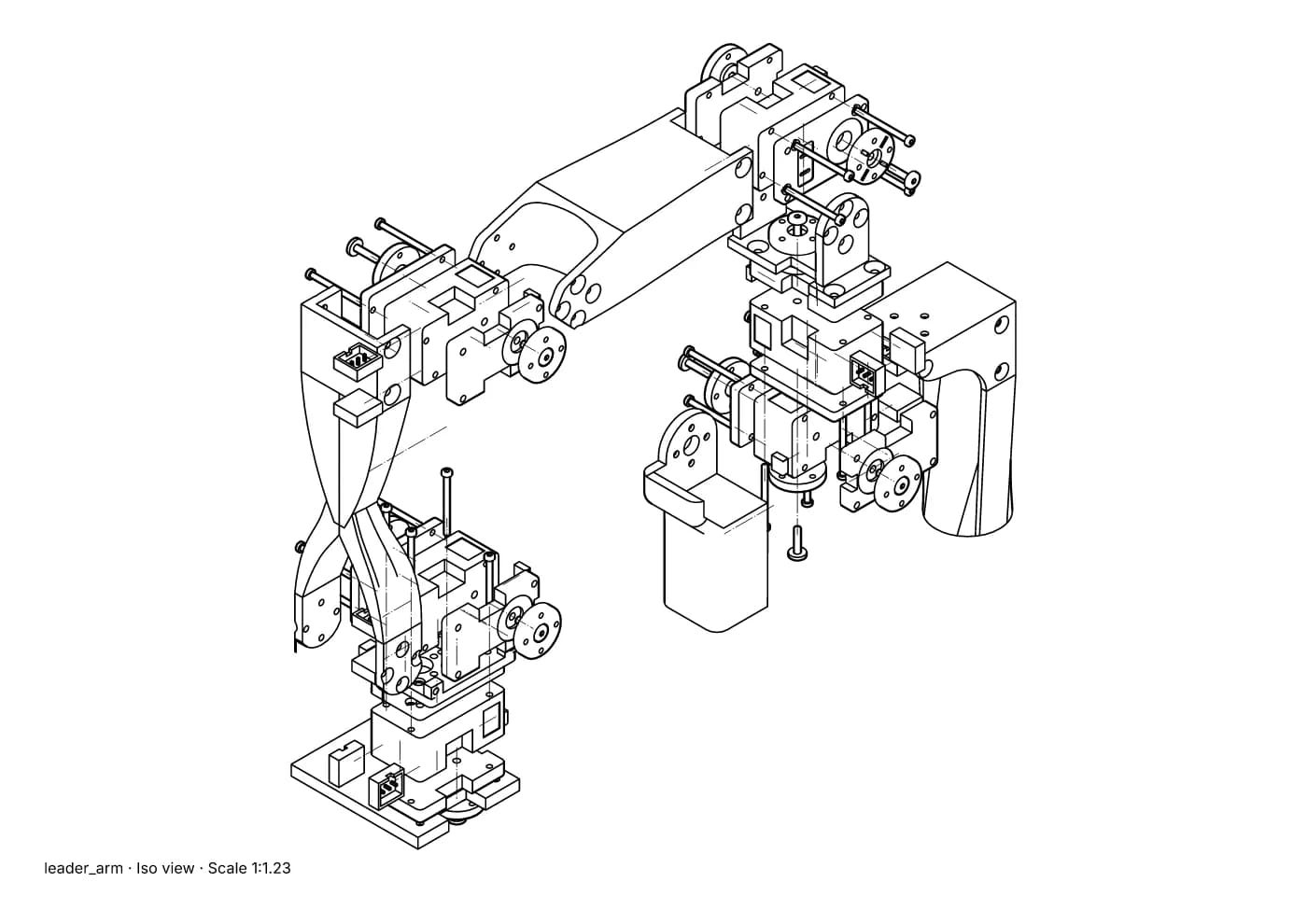
Fig. 1 · leader_arm.step · exploded iso · Illustration style · 90 of 91 placements moved · A4 1:1.23
An exploded view with its trail lines drawn as thin chain lines, so they read differently from part edges. Leader arm of Alexander Koch's low-cost robot arm. Model © 2024 Alexander Koch, MIT licence; servo and frame models by Galaxy Technology.
- Add trail lines as thin lines, dashed or chain, so they read differently from part edges.
- Number the parts with balloons that match the parts list, and keep the numbering when the model is revised.
- Decide whether hidden lines help this view; in an exploded view they usually don't. See hidden lines in technical illustration.
- If the view is for a set of instructions, read how to make assembly instructions from CAD before you draw the next one.
Sources
- 01Assembly CreateView, FreeCAD Documentation. Read 4 October 2026. FreeCAD 1.0 exploded views and how they reach a TechDraw page.
- 02Assembly InsertLink (Insert Component), FreeCAD Documentation. Read 4 October 2026.
- 03Animate Configurations, Autodesk Fusion Help. Read 4 October 2026. Storyboards and New Drawing > From Animation.
- 04Drawings, Onshape. Read 4 October 2026.
- 05Pricing (Free plan terms), Onshape. Read 4 October 2026.