Lattice XVL Studio or a print-first tool: an honest comparison
XVL Studio is an enterprise suite built on Lattice Technology's lightweight XVL format, for very large assemblies, PLM-linked publishing and interactive 3D. Our studio does a much smaller job: static line drawings and PDF manuals from a STEP file, in a browser, at a published price. Here is how to tell which you need.
Facts checked 10 sources
The short answer
If you publish from PLM data, work with assemblies too large to open in one piece elsewhere, or deliver interactive 3D on the web or in Excel, XVL Studio is built for that and Lineplate isn't. If a small firm needs clean line art, a ballooned parts list and a printable PDF manual from a STEP file, Lineplate does that in a browser, with its prices on the page.
Lattice Technology's XVL Studio is a suite of authoring tools built on XVL, its own lightweight 3D format. It sits at the heavy end of CAD-to-documentation: design review, process planning, work instructions, technical illustrations and parts lists, for manufacturers whose 3D data lives in PLM. Lineplate is much narrower. It makes static 2D drawings (SVG, vector PDF and PNG), ballooned parts lists and printable manuals from a STEP file, in a browser, and nothing in 3D.
Lattice sells XVL Studio in three grades, Basic, Standard and Pro, with options added on top. For illustration it also sells the XVL Technical Illustration Suite, a set configuration of XVL Studio Basic with the illustration and multi-CAD import options. Where this page says Pro on its own, it means our plan, not the XVL Studio grade.
Side by side
Every fact about XVL Studio comes from Lattice Technology's own pages, read on the date shown. Lattice doesn't publish prices, so none is quoted here. Every fact about our studio is what its code does today.
| Feature | Lattice XVL Studio | Lineplate |
|---|---|---|
| Runs on | Installed software for Windows: XVL Studio 24.1a lists Windows 11 x64, an Intel 64 or AMD64 processor and 8 GB of RAM.[8] | A web page: nothing to install. |
| CAD it opens | Native CATIA, Creo Parametric, NX and SOLIDWORKS, and interchange formats such as JT and STEP. STEP import and multi-CAD import are each listed as an option.[1][4] | STEP (.step, .stp), IGES (.iges, .igs) and OpenCASCADE BREP only. Native SOLIDWORKS, Creo or Inventor files need exporting to STEP first. A mesh-only file opens in 3D but gives no line drawing. |
| How the model is held | Converted to XVL, a lightweight format that Lattice says compresses CAD data to less than 1/100th of its size with an accuracy of 0.01 mm, and carries BOMs, metadata, process information and animations.[4] | The exact solid geometry, kept in your browser; hidden lines are computed from it. Files are read in your browser and aren't uploaded anywhere. |
| Very large assemblies | Large assemblies handled in a single file, without splitting them into sub-assemblies; a Shape Reference Link option is listed for extremely large models.[1] | Very large assemblies are slow to open in a browser. In our test, a 3D printer of 1,683 placed parts took about 6½ minutes to import with the in-browser kernel. Hidden-line views of open 1,000-part assemblies took 1½ to 5½ minutes, over our one-minute target, and left parts out. |
| Technical illustrations | Exploded views made automatically and by hand, notes, balloons and several illustration views, exported as raster or vector images. The Technical Illustration Suite bundles XVL Studio Basic with the Illustration and Multi-CAD Direct Import options.[1][2] | Automatic exploded views: each part moves out in a straight line, checked for collisions, then adjusted by hand. Parts that can't come out in a straight line are kept together and listed. Exact hidden-line removal from the solid geometry, with three line styles (technical, illustration, heavy outline) and your own line weights. |
| Parts lists and callouts | Parts lists built from BOM data, with item numbers assigned and callouts created automatically; several BOMs (E-BOM, M-BOM, service BOM) on one model.[1][2] | Automatic balloons with leaders, numbered from one parts list shared by every drawing. The list goes on the sheet as a table and out as CSV (Pro). |
| Output | Raster, vector and interactive 3D. Interactive documents can be delivered as 3D PDF, on the web through XVL Web3D Manager, or in Excel through Lattice3D Reporter.[2][3][6][7] | SVG, with circles and arcs written as true arcs, and vector PDF (PDF/A-2b, in RGB or in CMYK with the FOGRA39 profile; the leader arm's manual passed veraPDF on 5 October 2026). No EPS or CGM. PNG at 150, 300 or 600 dpi. None. The output is 2D: drawings, and manuals as PDF, SVG or PNG pages. There is no video, animation or interactive 3D. |
| Work instructions and manuals | Animated 3D work instructions or illustrated 2D ones, made from process data, in the Standard and Pro grades.[1] | Assembly steps worked out from the exploded view, then edited by hand. A manual builder lays out a cover, a parts list with a picture of each part, step pages and your own text, exported as a PDF with bookmarks, or as SVG or PNG pages (Pro). |
| PLM and business systems | Integration tools and XVL Content Manager connect to PLM, ERP and MES, and Content Manager adds vaulting and version control for XVL content.[4][5] | None. There is no PLM, ERP or MES connection; the parts list leaves as a CSV file for you to import. |
| When the design changes | "Auto Detect and Update" finds the changes in a new version of the model, shows them for checking, then applies the earlier work to the new version.[1] | Drop in the new STEP file: parts are matched and balloons, numbers, the exploded view and steps are carried across, with anything uncertain listed for review (Pro). |
| Paid plans | No price is published. XVL Studio comes in Basic, Standard and Pro grades with paid options, and is bought through Lattice Technology (a request-contact form) or a reseller: Lattice lists resellers in North America and Europe.[1][9][10] | Free: drawings of up to 250 parts, with no watermark. Pro: £49 a month per editor, or £490 a year. No VAT is charged: Galaxy Technology isn't VAT registered. |
Where XVL Studio is stronger
Size is the first difference. Lattice describes it plainly:
“XVL Studio can handle large 3D assembly models, allowing you to work without having to split manufacturing data into smaller sub-assemblies.”
The second is the link to business systems. XVL Content Manager is a server product for creating and managing 3D content, and Lattice says:
“XVL Content Manager can integrate with existing business systems such as PLM, ERP and MES, extending the value and benefits of those systems.”
The third is interactive output. Lattice's illustration page says its illustrations "can be rotated, zoomed and explored", and its documents can be viewed on the web, in Excel or as 3D PDF. Our studio has none of that: its pages are still pictures, because the page is the deliverable.
Both tools carry work across a design change. XVL Studio's Auto Detect and Update finds the changes in a new version, shows them for verification, then applies the earlier work. Our studio matches parts in a new STEP revision and lists anything uncertain for review (on our Pro plan).
What our output looks like
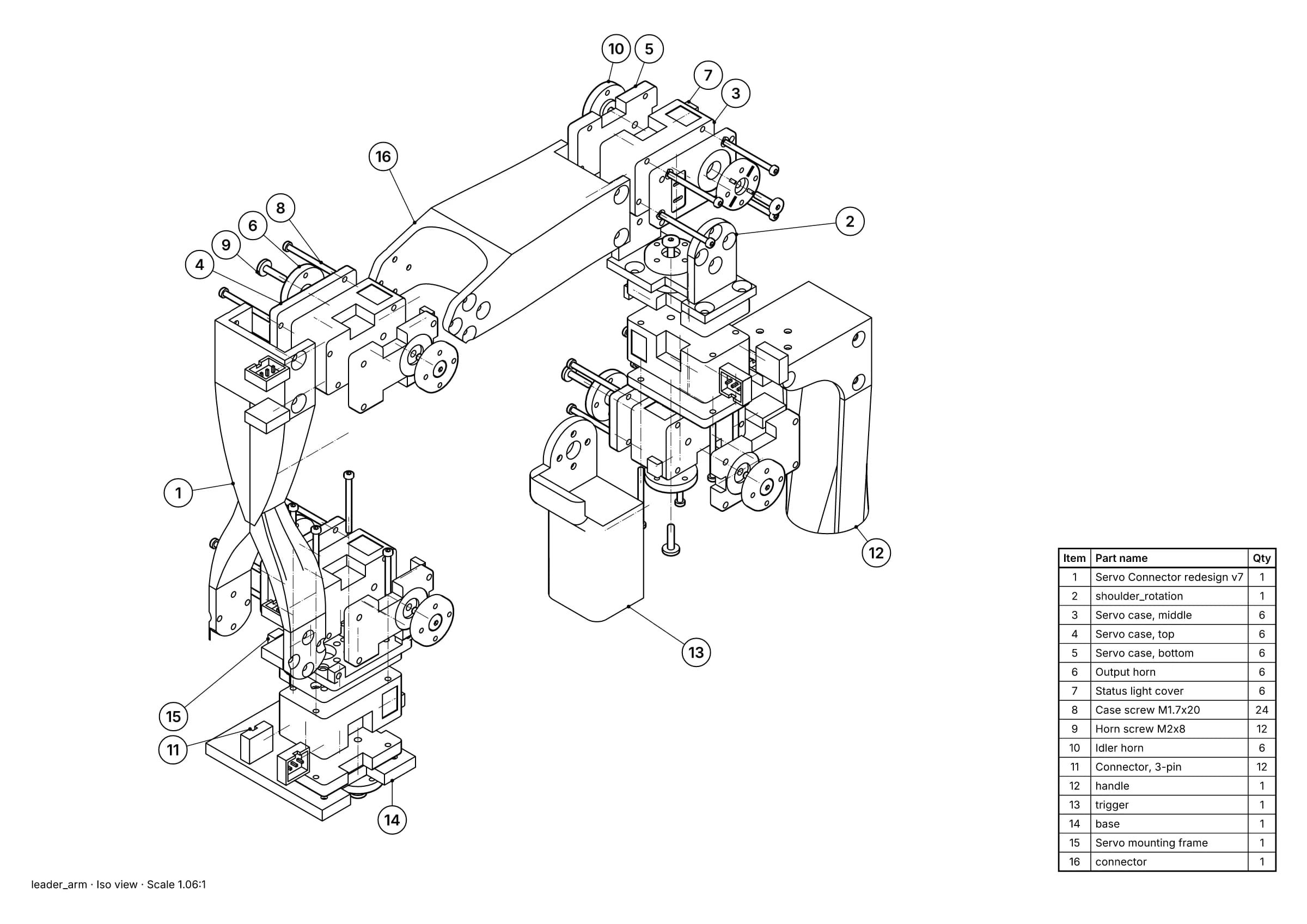
Fig. 1 · leader_arm.step · 16 balloons · 16 items · A3
A printed parts page made from a STEP file: exploded view, balloons and parts list, all line art. Leader arm of Alexander Koch's low-cost robot arm. Model © 2024 Alexander Koch, MIT licence; servo and frame models by Galaxy Technology.
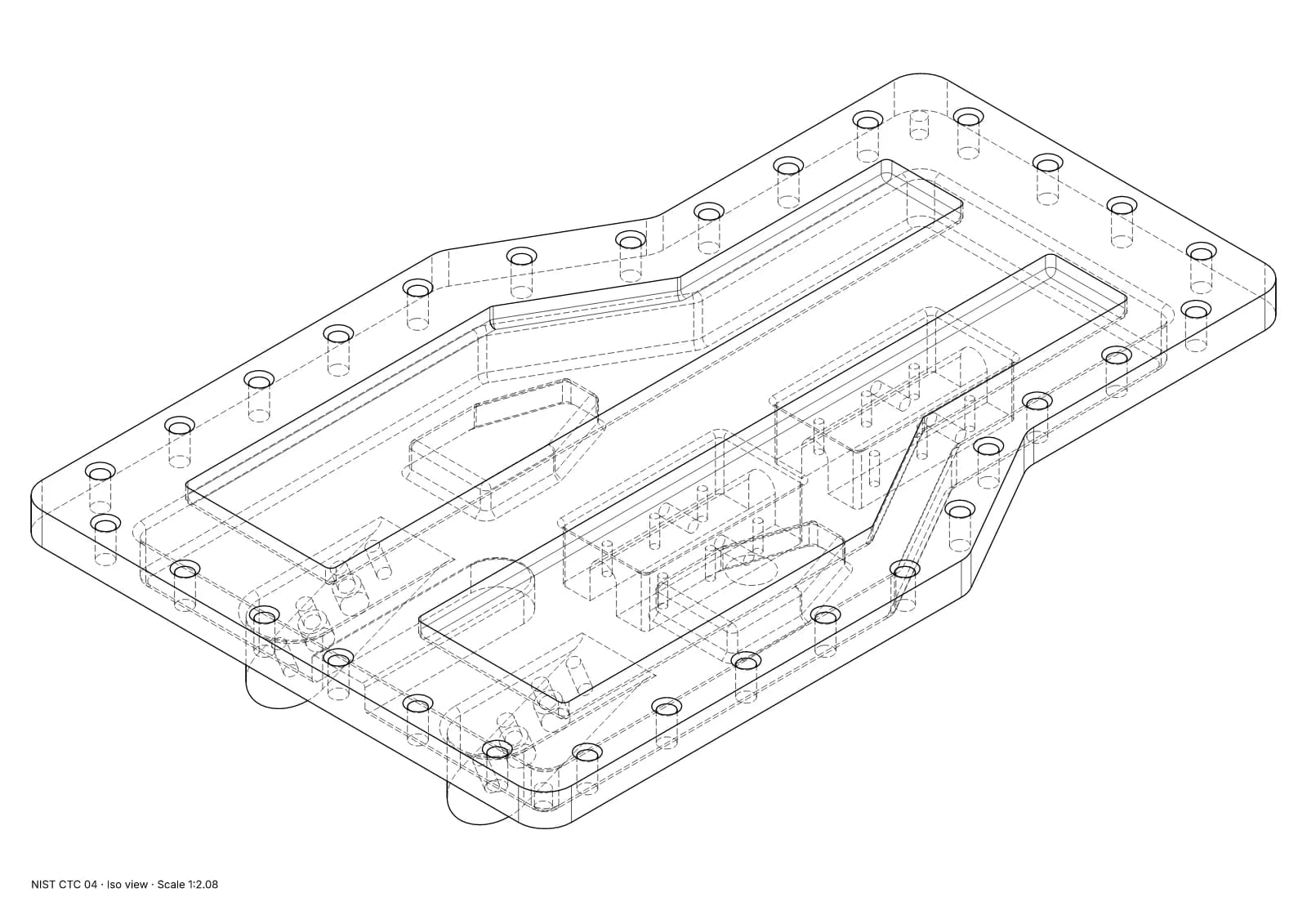
Fig. 2 · NIST CTC 04 · iso view · Technical · 1:2.08 · 854 true arcs · 0 fragments · 0 duplicates
Exact hidden-line removal on a single part: true arcs in the SVG and dashed hidden lines. NIST MBE PMI test part, a US government work used without restriction.
What Lattice XVL Studio does well
- Very large assemblies: whole manufacturing models in one lightweight file, without splitting them into sub-assemblies.
- Native CAD and PLM: CATIA, Creo, NX, SOLIDWORKS and JT import, and integration with PLM, ERP and MES systems.
- Interactive 3D output that readers can rotate and explore, delivered on the web, in Excel or as 3D PDF, with free viewers.
- Several BOMs on one model (engineering, manufacturing and service), plus process planning and design review in the higher grades.
- Automatic updates when the model changes, with the changes shown for checking before earlier work is carried across.
Where Lineplate falls short today
- Each project lives in the browser it was made in. Nothing syncs between machines or people, so moving a project means importing its CAD file again.
- There is no 3D, video or animated output, and no EPS or CGM.
- It reads STEP, IGES and BREP, not native CAD files. From SOLIDWORKS, Creo or Inventor you export a STEP file first, and a STEP file that holds only a mesh (tessellated geometry) gives no line drawing.
- Very large assemblies are slow to open in a browser. In our test, a 3D printer of 1,683 placed parts took about 6½ minutes to import with the in-browser kernel. Hidden-line views of open 1,000-part assemblies took 1½ to 5½ minutes, over our one-minute target, and left parts out.
- Auto-explode moves each part in a straight line. A part that can only come out with a twist or a dog-leg is kept together with what traps it and listed for you to deal with. On one 58-part extruder sub-assembly, 6 parts stayed together this way.
- Team shares a workspace and a bill, not files: there are no shared cloud projects, review links or single sign-on.
When to choose Lattice XVL Studio instead
- Your documentation is published from PLM data and has to stay linked to it, or feed an ERP or MES system directly.
- Your assemblies are very large, and you need them whole in one file rather than as sub-assemblies.
- Your readers will use interactive 3D on the web, in Excel or in a 3D PDF.
- You work from native CATIA, NX, Creo or JT data and want to publish straight from it.
When Lineplate is the better fit
- You are a small firm whose output is printed or sent as a PDF: line drawings, a ballooned parts list and step pages.
- Your models arrive as STEP files and you would rather not install Windows software or deal with a sales process.
- You would rather the CAD file stayed on your computer, read by a page in your browser.
- You want to see published prices before you start.
Sources
- 01XVL Studio Series, Lattice Technology. Read 19 October 2026. The grades, the options and the key features.
- 02XVL Technical Illustration Suite, Lattice Technology. Read 19 October 2026.
- 03Advanced Technical Illustrations, Lattice Technology. Read 19 October 2026.
- 04XVL Technology, Lattice Technology. Read 19 October 2026. The XVL format, its compression and its CAD converters.
- 05XVL Content Manager, Lattice Technology. Read 19 October 2026.
- 06XVL Web3D Manager, Lattice Technology. Read 19 October 2026.
- 07Lattice3D Reporter, Lattice Technology. Read 19 October 2026.
- 08System requirements, Lattice Technology. Read 19 October 2026. Last updated by Lattice on 15 October 2026.
- 09Authorized resellers and OEM partners, Lattice Technology. Read 19 October 2026.
- 10Request contact form, Lattice Technology. Read 19 October 2026.
Facts about our studio describe its code on 19 October 2026. Prices change; check the source before you buy. If anything here is wrong, tell us at hello@lineplate.com and we'll correct it.
XVL, XVL Studio and Lattice3D Reporter are names of Lattice Technology and its products. Lineplate is not affiliated with, endorsed by or sponsored by Lattice Technology.